
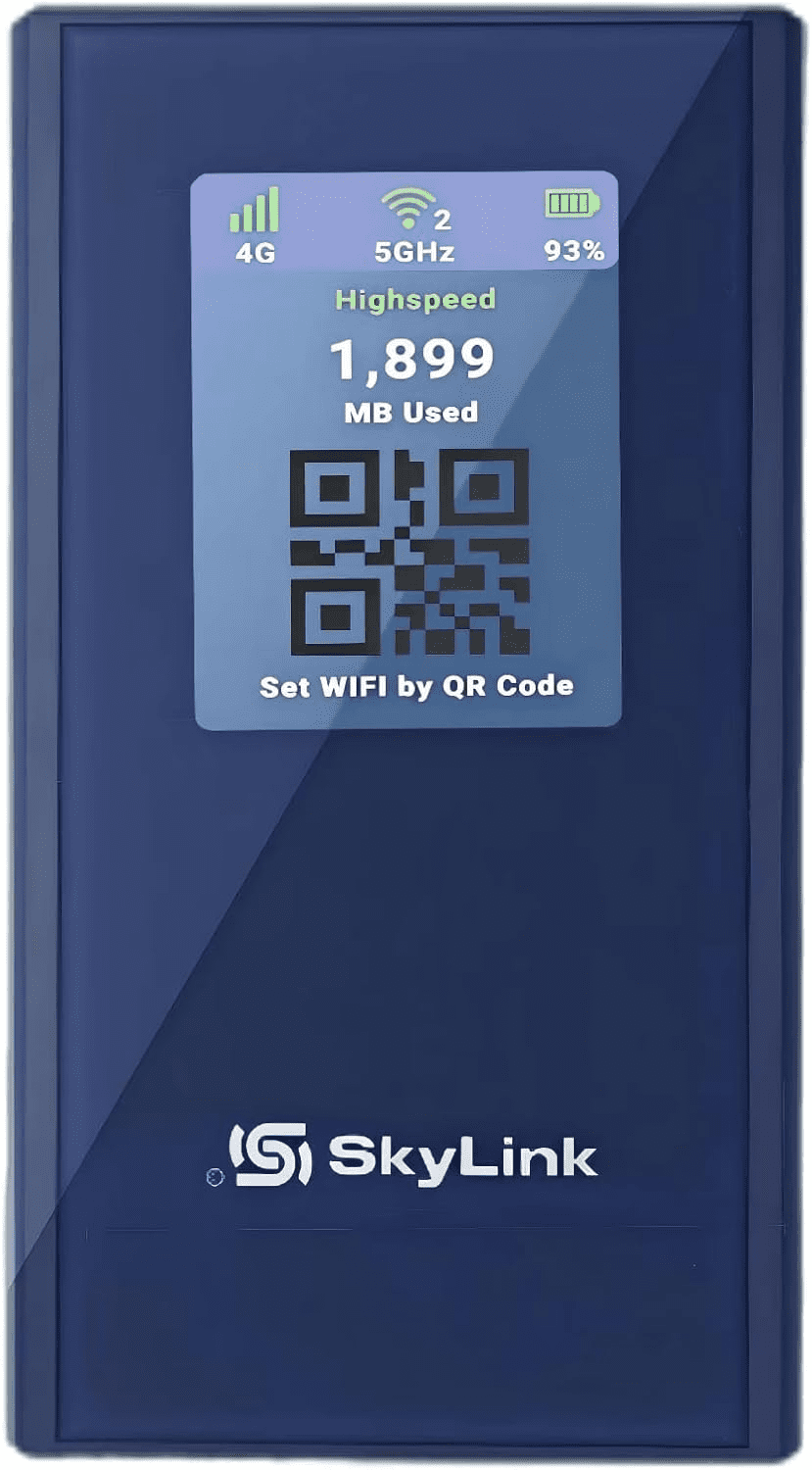
Blade Pocket WiFi
How do I power on the device?
Press and hold the power button until the screen lights up. The 2.4″ LCD screen will display
signal status, battery level, WiFi info, and more.
What comes included with the device and initial data?
Each unit comes with:
● 1x Blade Pocket WiFi Hotspot
● 1x USB charging cable
● 10GB of U.S. data (valid for 30 days after activation)
How many devices can I connect at once?
You can connect up to 16 devices simultaneously — including smartphones, tablets, laptops,
and more.
How do I top up or add more data to the Blade Pocket WiFi?
Topping up your data is quick and easy:
● Turn on your Blade Pocket WiFi.
● On the home screen, press the MENU button to cycle through options.
● Locate the screen that displays a QR code.
● Scan the QR code with your phone — this will take you to the top-up portal.
● Select your data plan, complete payment, and wait for confirmation.
● Restart the device to activate your new data plan.
📌 If you run into any issues, don’t hesitate to contact us at service@skylink-wifi.com.
How long does the battery last?
Do I need a SIM card or contract?
No SIM card or contract is needed. The device uses built-in virtual SIM (vSIM) technology
that automatically connects to the strongest available LTE network in 140+ countries.
What are the expected internet speeds?
The Blade Pocket WiFi supports LTE Cat 6, offering speeds up to:
● 300 Mbps download
● 50 Mbps upload
Actual performance may vary depending on location and network coverage.
Is the device compact and travel-friendly?
Yes! It’s extremely portable — about the size of a smartphone:
● Dimensions: 130mm x 70mm x 13mm
● Weight: Approximately 143g
Perfect for travelers, remote workers, or mobile small businesses.
How do I check how much data I’ve used?
many devices are connected — no app required.
My smart devices (like printers or smart plugs) won’t connect — what should I do?
To switch your Blade Pocket WiFi to 2.4GHz mode:
🛠️ Press and hold the MENU button for 5 seconds.
The display at the top will change from “5GHz” to “2.4GHz.”
Once the device is on 2.4GHz, reconnect your smart home devices.
What if I’m still having trouble connecting or using the device?
📧 service@skylink-wifi.com
We’ll get back to you as soon as possible